
How to set up LINE auto-replies: message examples and 3 approaches compared
LINE is the most widely used messaging app in Taiwan and the main channel between businesses and their customers. But as messages pile up, owners and staff notice that most questions are repeats: opening hours, address, prices, how to book. These shouldn’t take up staff time. This article compares three ways to auto-reply on LINE and walks you through building your own auto-reply bot step by step.
The LINE Official Account plans and prices mentioned here are for LINE Official Account in Taiwan, which differ from other countries such as Japan.
Three ways to auto-reply on LINE
| Approach | Pros | Limits | Best for |
|---|---|---|---|
| 1. Built-in Official Account replies (saved replies / keyword replies) | Free and easy to set up | Keywords must match exactly, so a customer who phrases it differently gets no answer; no multi-step conversations (with the Advanced Chat plan, the AI chatbot (beta) can answer common questions) | Businesses with few messages and very fixed questions |
| 2. Flow-based chatbot (menus + guided buttons) | Multi-step interactions (ordering, collecting details, lookups) with a controlled experience | Questions customers type freely still have to be designed in advance | Businesses that need to collect details or guide customers through tasks |
| 3. AI customer service (knowledge base + AI replies) | Understands casual wording, so it answers the same question asked a hundred ways; knowledge keeps building up | You need to prepare knowledge first; answer quality depends on the knowledge base | Businesses with many common questions that want 24/7 auto-replies |
In practice, the best approach is to combine them: use menus and flows for clear tasks (booking, leaving an order), use an AI knowledge base to catch free-form questions, and keep a way to reach a person. Chatbotta is designed around this setup, so we use it to demonstrate the full process below. What LINE’s built-in AI chatbot (beta) can do, and how it differs from an AI customer service platform, is covered in LINE AI auto-reply: what the built-in Official Account AI chatbot can do.
LINE auto-reply message examples (ready to use)
Whichever approach you use, write the reply text first. Below are the 6 examples businesses use most; replace “XX” with your details. You can set these as the Official Account’s greeting message for new friends, as keyword auto-reply messages, or save them as saved replies for staff to use manually.
| Situation | Example message |
|---|---|
| Welcome message for new friends | Thanks for adding XX! To learn about our services and prices, tap the menu below. Have a question? Just send us a message and we’ll reply as soon as we can. |
| After hours | Hi, we’re currently closed (hours: Tuesday–Sunday 11:00–20:00). We’ve received your message and will reply first thing when we open tomorrow. |
| Hours and address | [Hours] Tuesday–Sunday 11:00–20:00 (closed Mondays) [Address] 123 XX Road, XX City, a 3-minute walk from Exit 2 of XX MRT Station [Parking] XX parking lot nearby |
| Price questions | Here’s our price list: XX (link). Not sure which option suits you? Just describe what you need and we’ll recommend one. |
| Booking questions | To book, please tell us: ① your preferred date and time ② the service ③ the number of people. We’ll confirm the time slot and get back to you! |
| Hand off to a person | This question needs one of our staff to explain. We’ve let our team know and a person will reply shortly. Thanks for your patience. |
Step 1: Turn on the LINE Messaging API
- In LINE Official Account Manager, open your account, go to “Settings → Messaging API”, select “Enable Messaging API”, and choose or create a provider
- Go to the LINE Developers Console and select your Official Account’s channel
- Open the “Messaging API” tab, issue a Channel access token (long-lived), and copy it
Step 2: Create a chatbot project
- Sign up and sign in to Chatbotta and answer three questions: your type of business and name, where customers find you, and your website URL and common questions (the last two are optional)
- Chatbotta reads your website, organizes common questions and builds a first version of your bot. It’s still a draft, and you can chat with it right away
- In the project’s “Channels”, select “Add channel” and choose “LINE Official Account”. Follow the on-screen steps to paste the Channel access token you copied, confirm it’s the right account and select “Yes, connect this account”. The webhook URL is set up automatically
For detailed steps and troubleshooting, see Connect a LINE Official Account.
Step 3: Design your auto-reply content
Answer common questions with the knowledge base
Organize your hours, address, prices, return rules and so on into Q&As and upload them to the AI knowledge base (you can upload PDF/DOCX files directly, and AI splits them into Q&A pairs). After that, whether customers ask “What time do you open?”, “Are you open today?” or “How late are you open?”, the AI matches them to the same entry.
Build menus and interactions with flows
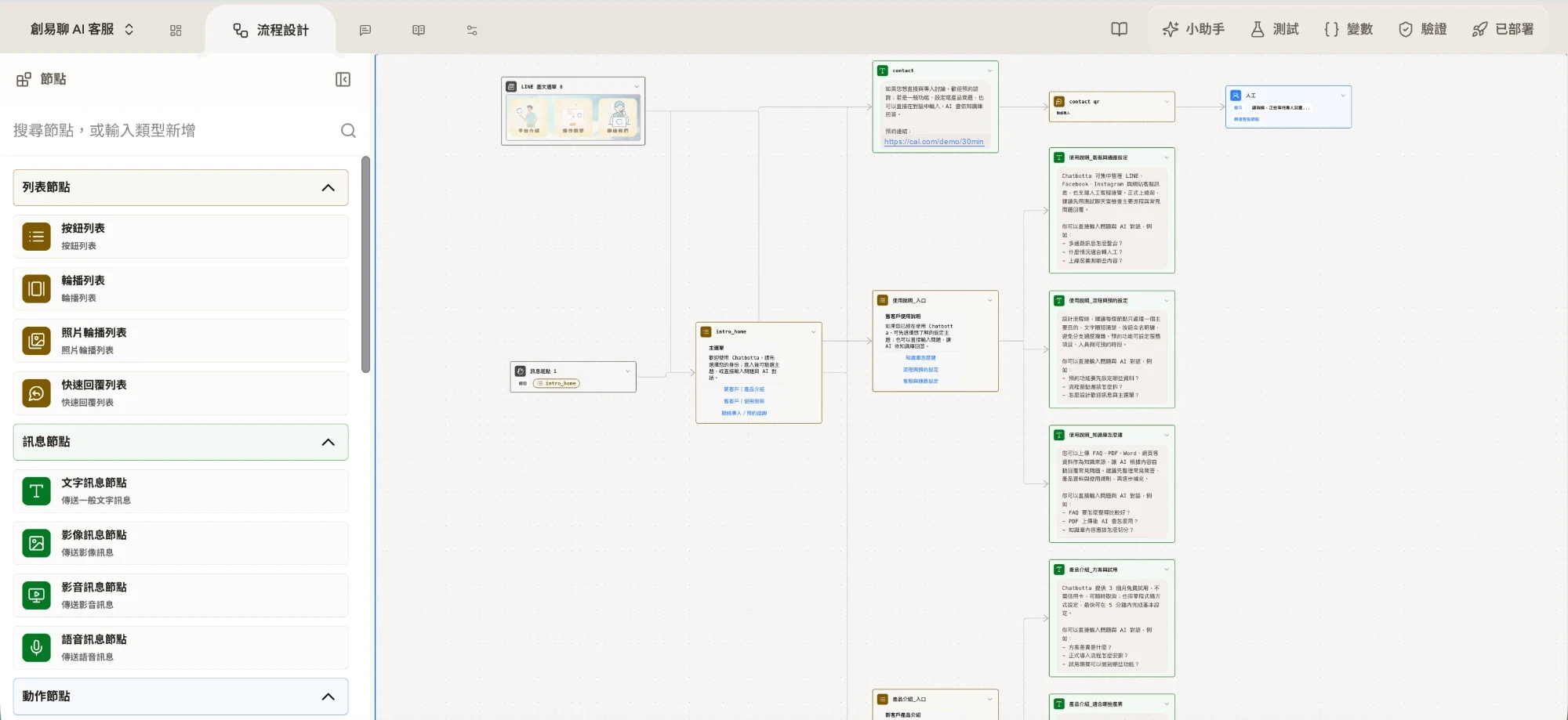
In Flows, use the “On follow” trigger to set a welcome message, then add “Choices” buttons and quick replies to guide customers to look things up or leave their details. You can also tell the built-in Copilot “I want a flow that lets customers leave their name and phone number” and let it lay out the steps for you.
Keep a way to reach a person
Add a “Hand off to a person” step to the flow, or let staff take over directly in Chats. Whenever the bot can’t handle a question, staff can step in, then select “Return to bot” when they’re done.
Step 4: Test and publish
- Open “Test” on the right and ask all your common questions once (testing uses the draft)
- Check the results at the top of the flow; any step with a problem must be fixed before you can publish
- Select “Publish”, then scan your Official Account’s QR code with your phone to try it for real
Want to learn more about what AI customer service can do for your LINE Official Account? See LINE AI customer service.
FAQ
Q: Can the free LINE Official Account set up auto-replies?
A: Yes. The keyword replies and saved replies built into LINE Official Account are free, but they only handle fixed questions and answers. With the Advanced Chat plan (NT$100/month in Taiwan), you can use LINE’s AI chatbot (beta) to answer common questions from files you upload. To run conversation flows, take bookings, or let AI call your own systems to get things done, you need the Messaging API plus a chatbot platform.
Q: Will auto-replies annoy customers?
A: The key is to answer accurately and always leave a way out. Auto-replies should answer common questions correctly and always offer the option to reach a person. Bots that miss the point and offer no way out are what annoy customers.
Q: Do I need to code to set up LINE auto-replies?
A: No. With a no-code platform like Chatbotta, you issue a Channel access token for the LINE Messaging API, paste it into the platform, and design conversations with visual flows or Copilot.